
Features
What you can show in your waiting room
Keep visitor information clear across clinics, practices and reception areas.
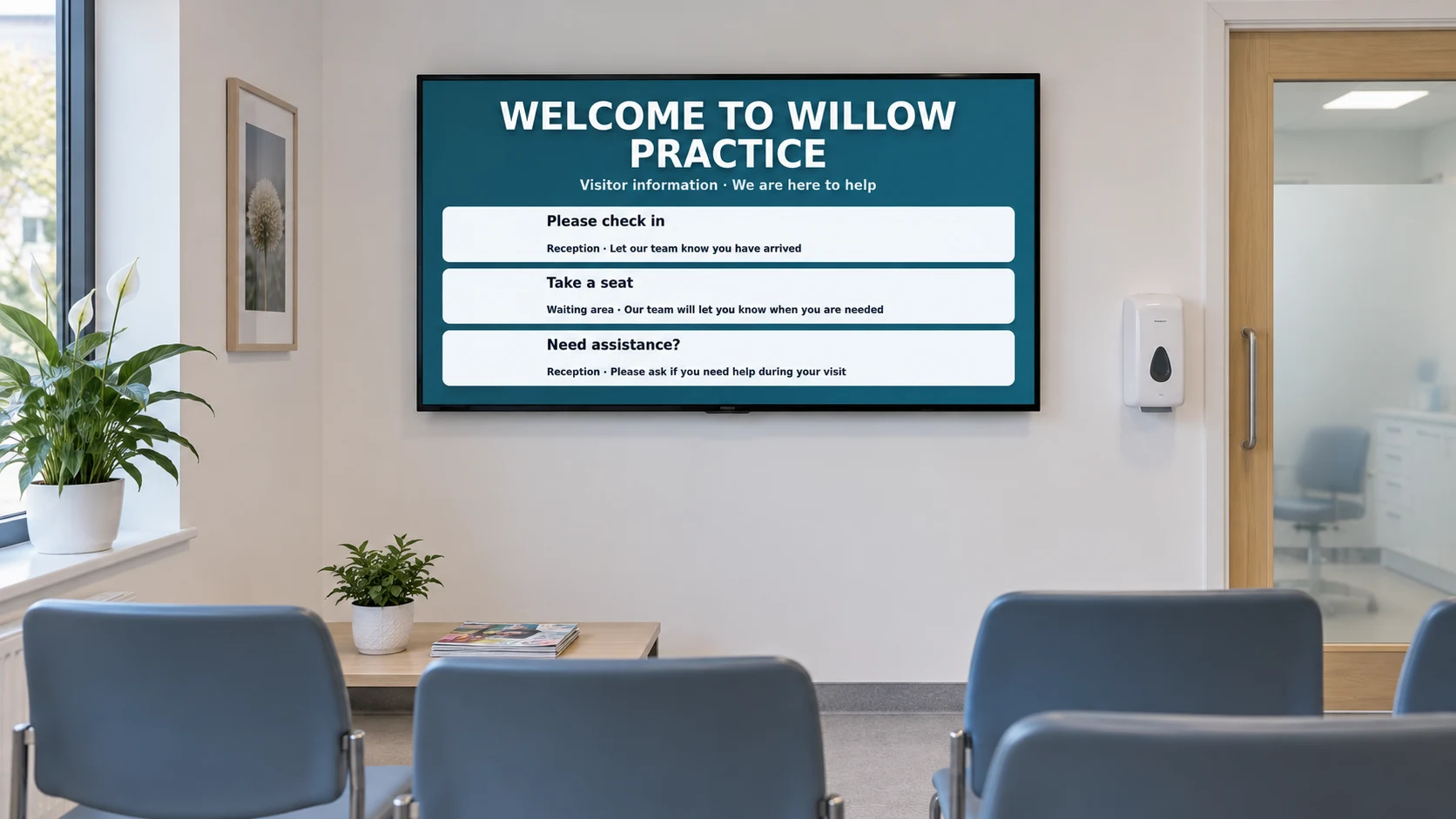
EXAMPLES ON SCREEN
See what your screens can show.
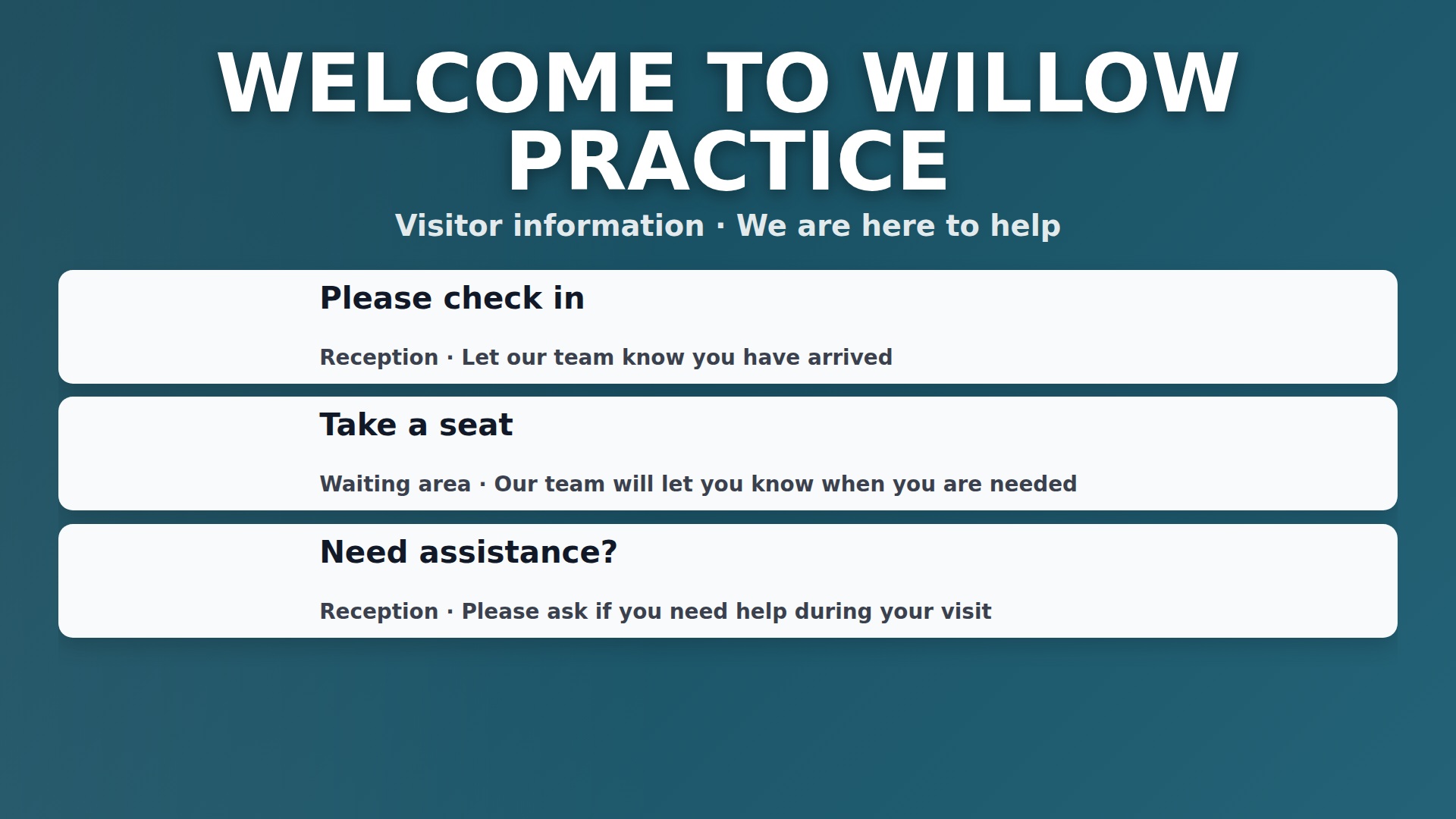
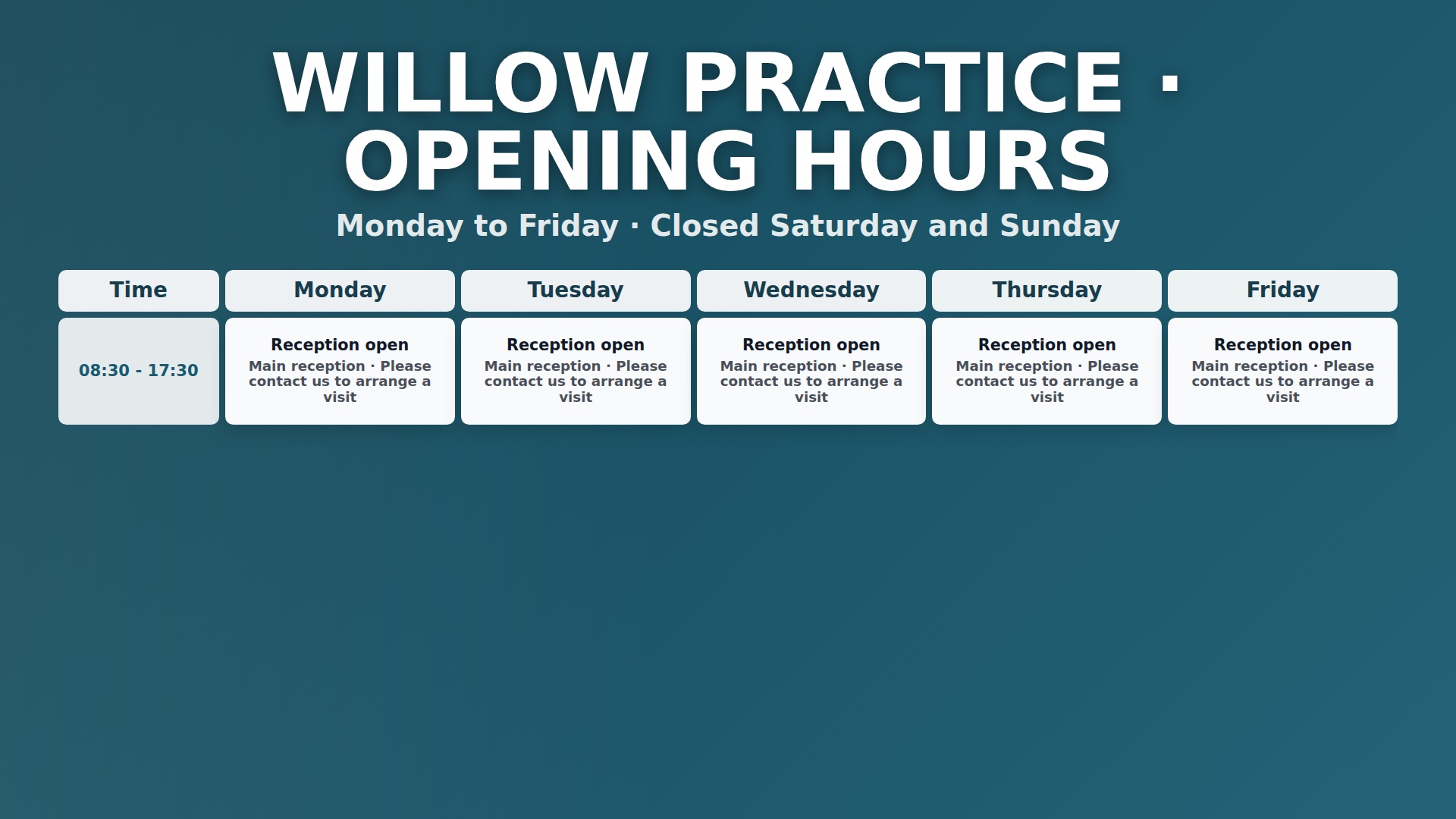
Answer everyday questions
Keep check-in instructions, opening hours and useful directions visible where visitors can read them while waiting.
More detailLess detail
Keep check-in instructions, opening hours and useful directions visible.
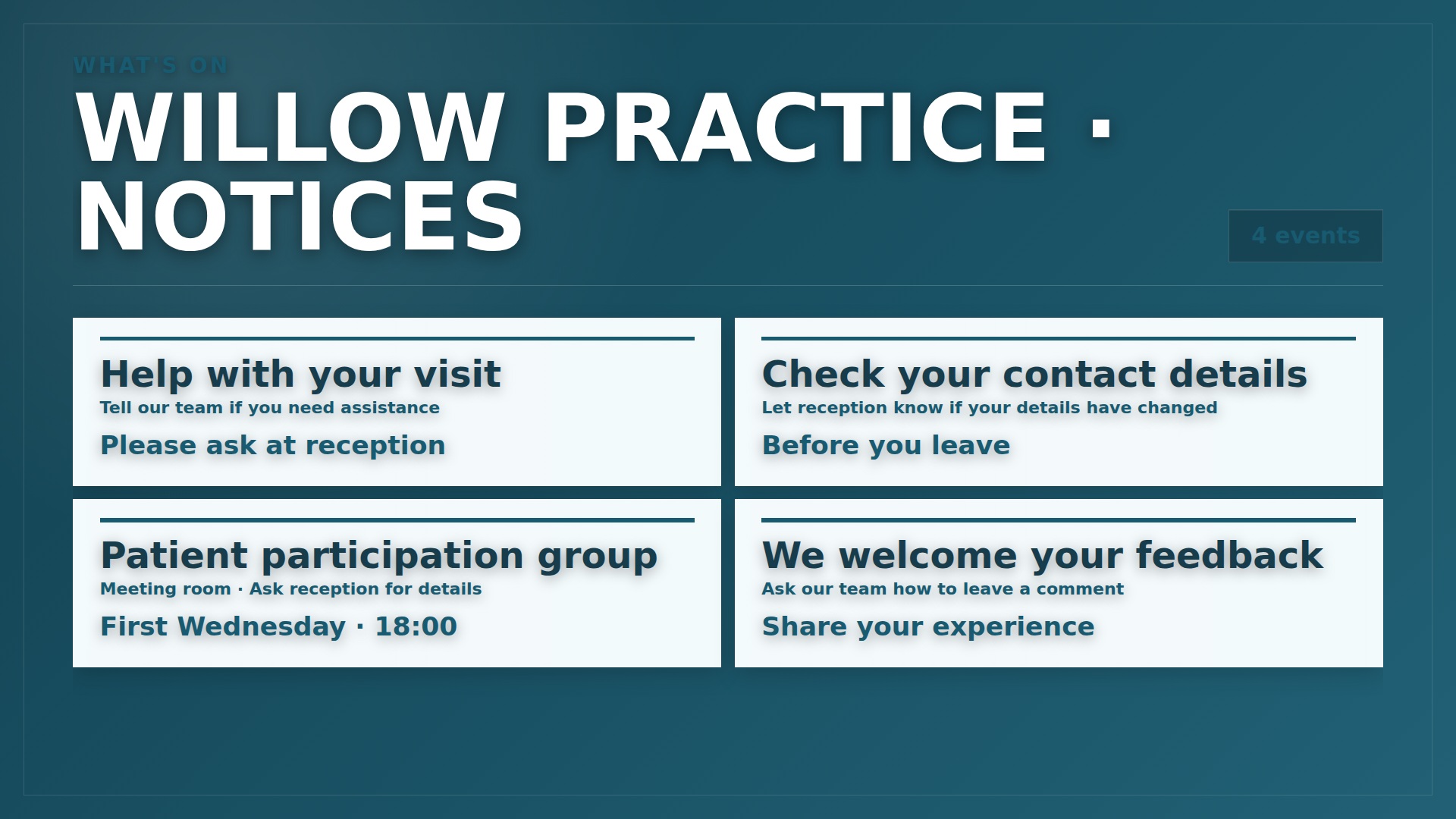
Make notices easier to see
Give planned closures, service changes and booking information a clear place in your screen programme.
More detailLess detail
Share planned closures, service changes and booking information in a clear, readable loop.
Keep every room informed
Update information from your dashboard and give each waiting area a playlist suited to its visitors.
More detailLess detail
Update content from your dashboard and choose the right playlist for each waiting area.
Choose what plays
Arrange public information into playlists and schedule what plays on different days and at different times.
More detailLess detail
Combine your content in playlists and schedule it for different days and times.
Start with one screen
Begin with a compatible screen and add more displays when the setup suits your venue.
More detailLess detail
Use a compatible screen and add more when it suits your business.
Check your screens
Review recent screen check-ins from your account to see which waiting-area players have been reporting.
More detailLess detail
See recent screen check-ins from your DisplayFlow account.
Upload approved notices and information documents
Upload approved notices, photos and videos, then review document pages for readability and suitability before public display.
More detailLess detail
Add approved service graphics, venue photographs and MP4 videos to Media. Import a PDF information sheet or PowerPoint as ordered still images, then review each page before selecting it for a playlist or folder slideshow. Presentation animations, transitions and audio are not retained. Check readability from the seats and use material intended for public display.
Schedule information and expire dated notices
Schedule useful information for each waiting area and give temporary notices expiry dates to avoid outdated messages.
More detailLess detail
Arrange welcome messages, opening hours and service information into a playlist with a clear order and duration for each item. Assign different waiting areas their own content and schedule changes by day or time. Set expiry dates on planned closures or temporary notices so outdated items stop being selected, while retaining the source artwork in Media.
Add useful overlays and calm information pages
Add branding, booking links and practical information pages while keeping directions clear from the visitor’s position.
More detailLess detail
Apply a reusable logo, text, date/time or QR code overlay to selected playlist items, such as a booking-information link. Use a ticker for short reception notices and Special pages for a clock, countdown or weather. Review the layout from the visitor’s position to keep directions clear. Weather and external web content require internet access.
Check reception and waiting-area player connections
Check reception and waiting-area player connections, with guidance on available alerts, supported devices and connectivity.
More detailLess detail
Use clear screen names and review recent player check-ins from your account. Available email alerts can help identify a device needing attention. A compatible browser or Android player displays your content. Downloaded media can continue on a suitable configured player during a connection loss; new notices and live information need connectivity.
Send temporary room and reception directions
Let staff send temporary room directions or service notices to an assigned screen before normal content resumes.
More detailLess detail
Prepare a named message setting for the appropriate screen and a suitable display duration. Staff can send a short room direction or service notice from admin or the separate staff page. Messages queue for player check-in, interrupt the normal display and resume the playlist afterwards. An optional chime depends on working speakers and audio permissions.
Review and maintain public information as a team
Prepare approved answers to common questions, keep information current and review each display from the visitor’s position.
More detailLess detail
Start with the questions reception is asked most often, then prepare approved wording for check-in, accessibility, bookings and service changes. Keep the public playlist focused on useful information and review dates regularly. Give each waiting area relevant directions, keep personal visitor details off public screens, and check the actual display whenever a notice or layout changes.